
Safely open Turrit on your Mac
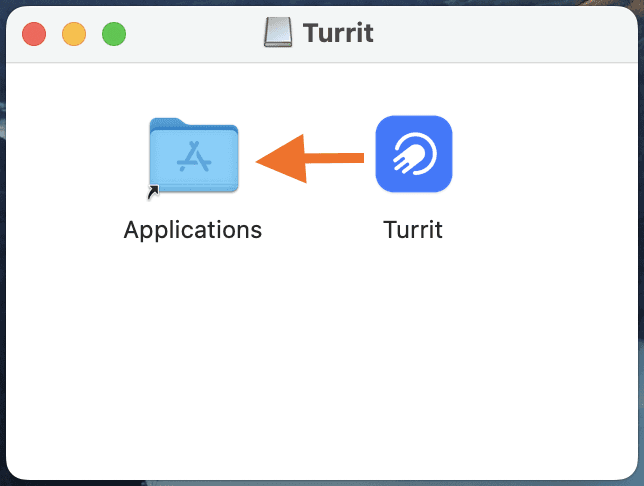
Download and drag it to Applications
Click「Open」
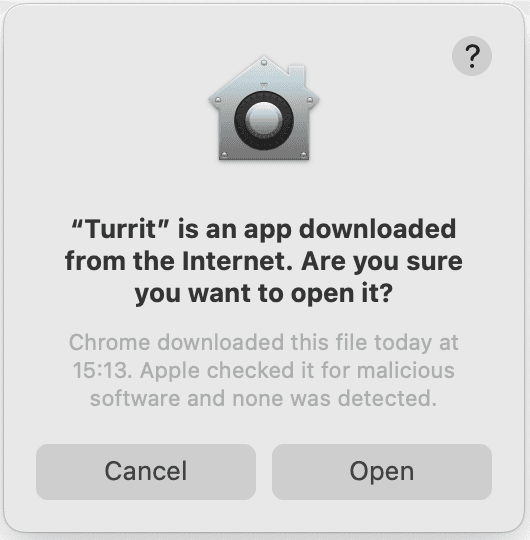
If it alert that the app wasn't downloaded from the App Store
>Click 「Done」in the pop-out window.

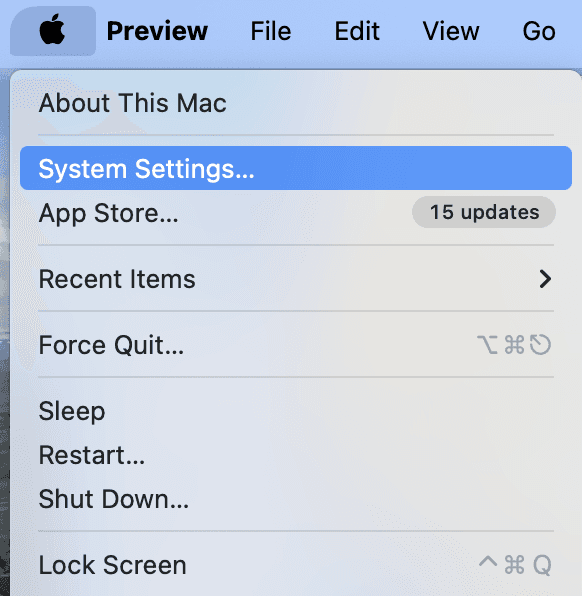
In the top left corner of your Mac, choose 「Apple menu」 > 「System Settings」
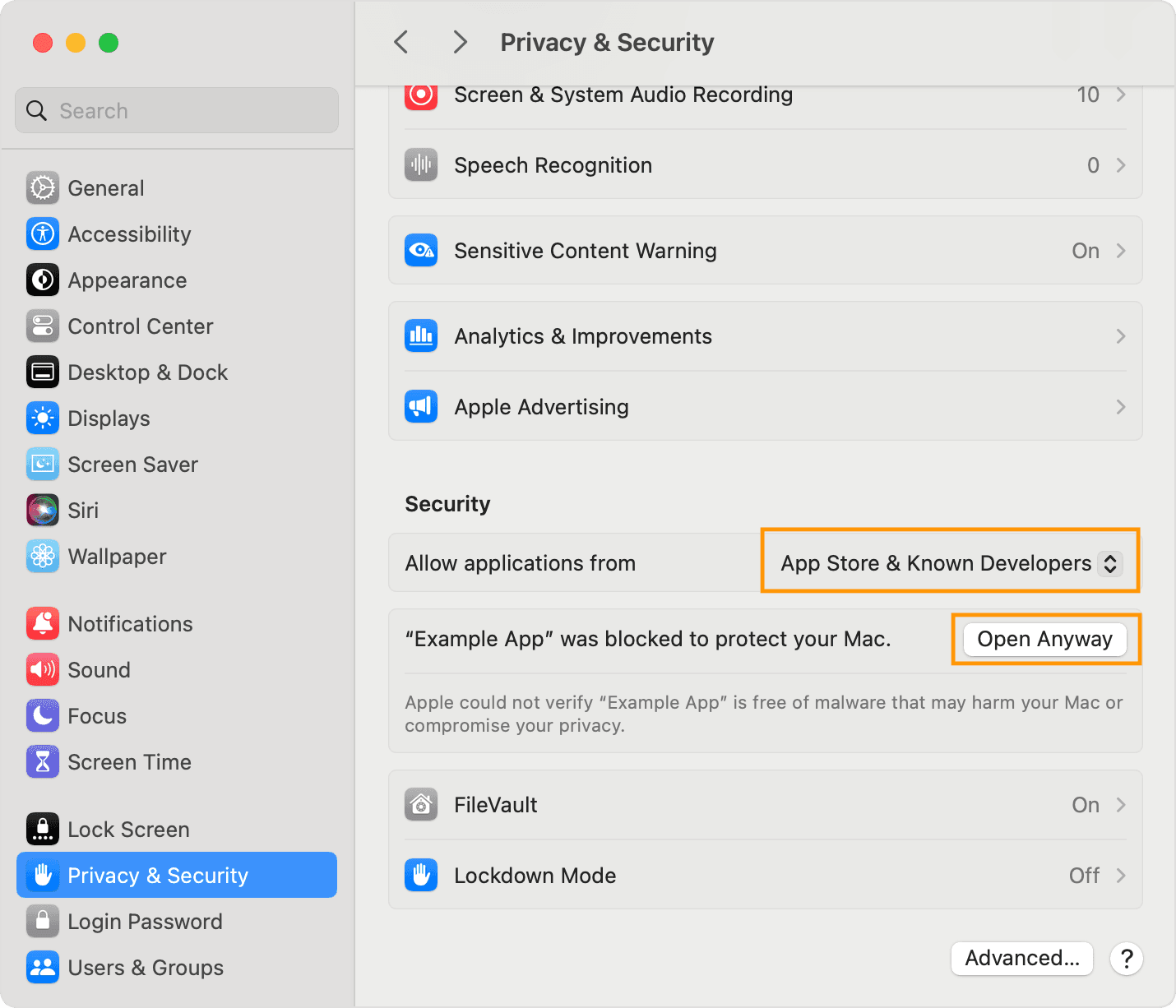
Click 「Privacy & Security」, choose 「App Store & Known Developers 」,choose「Open Anyway 」
Click 「Open」

The app is now saved as an exception to your security settings, and you can open it in the future by double-clicking it, just as you can any authorized app.
Now you can use Turrit macOS!
Can't log in:
Network/Proxy Issues:
Add Proxy in Turrit/Telegram:Top right corner of the login / Settings - Data and Storage - Use Proxy)
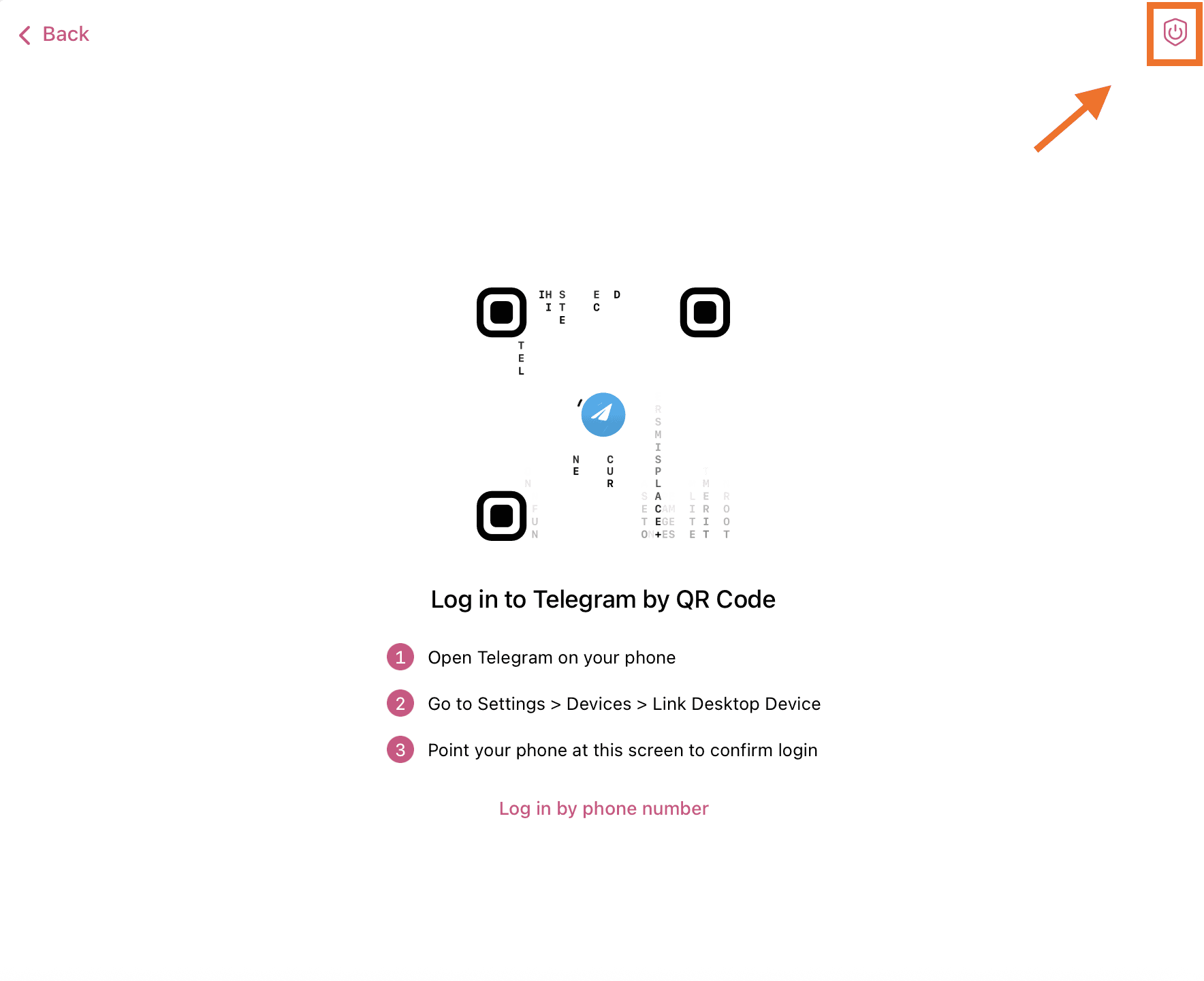
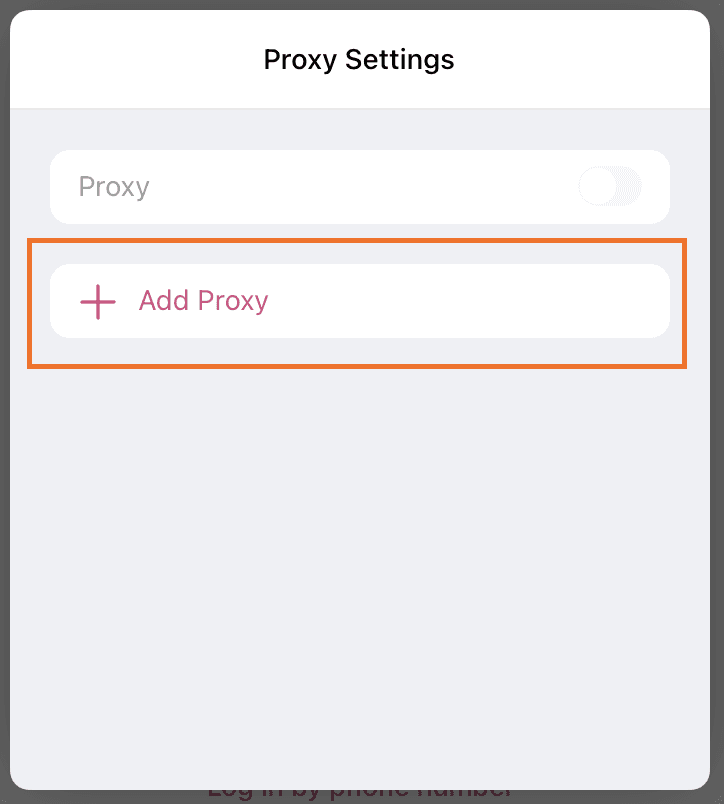
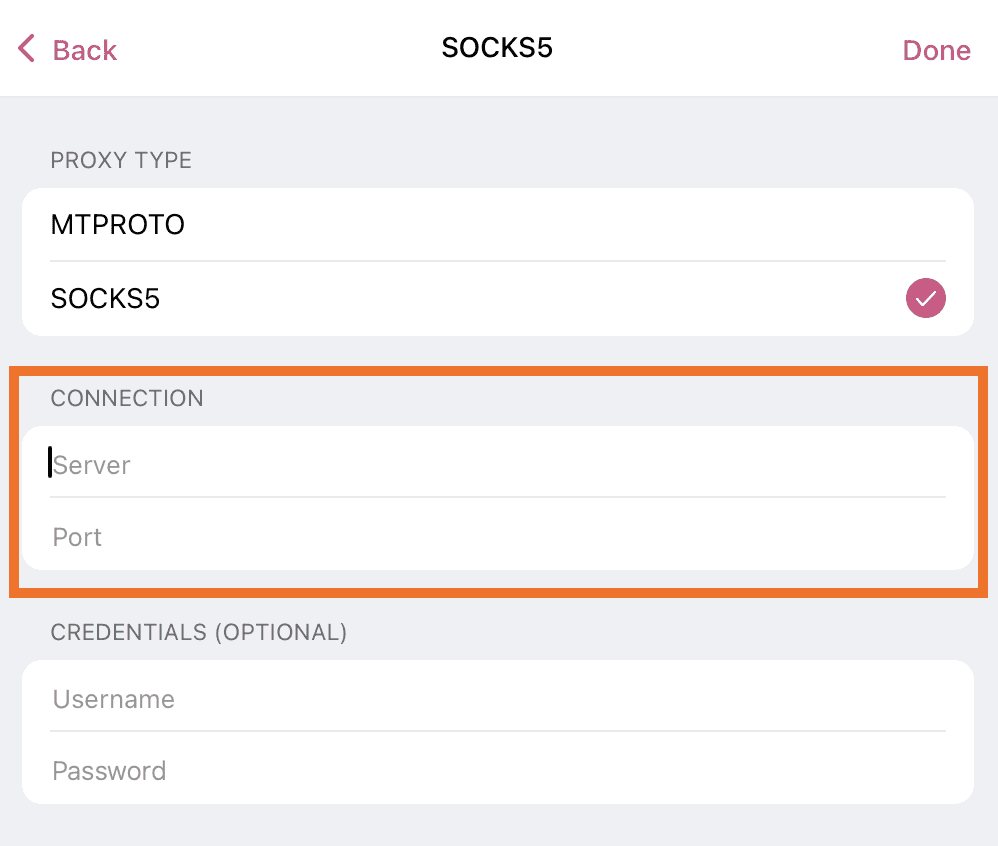
如何将代理添加到 Telegram:https://doc.flyintpro.com/faq/allfaqs/telegram
How to Add Proxy to Telegram | Proxy Integration Tutorial:
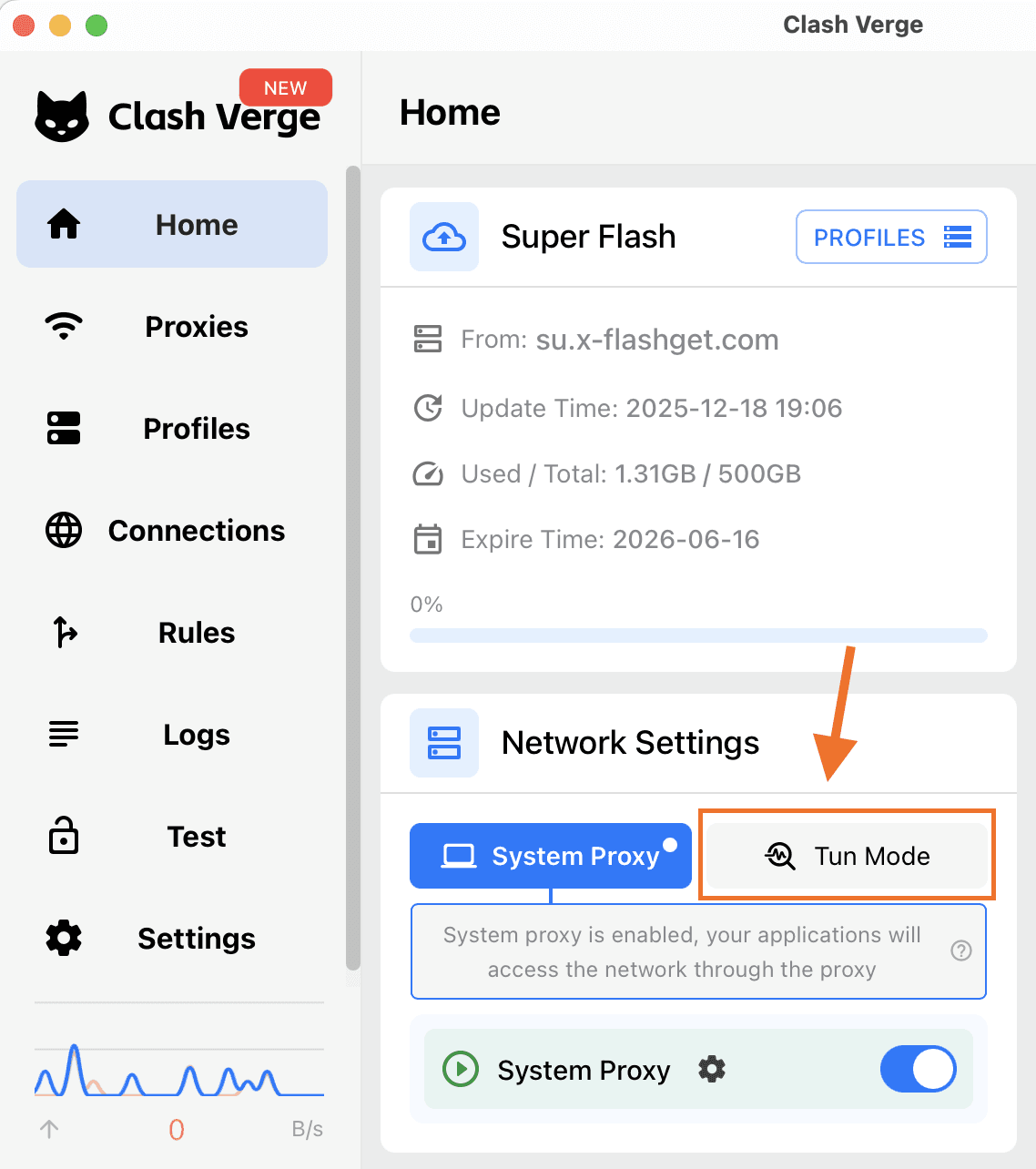
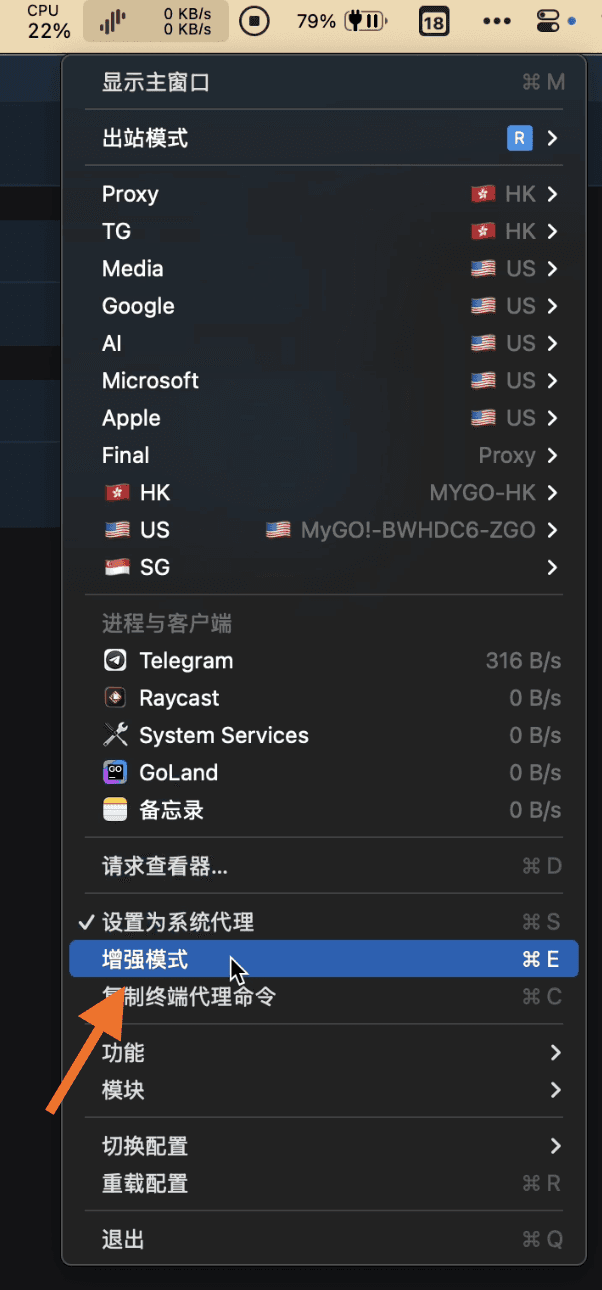
Open your proxy software - enable system proxy - enable enhanced mode/Tun Mode. Then no need to add proxy in Telegram/Turrit.
“I got a ‘Failed’ pop-up when trying to install Turrit”
Try re-installing
Text Turrit admin on Telegram @FreeJennie.